
Pivot Tables & Charts for Data Analysis & Reporting
Click the play button below to listen to this technical project!
Disclaimer. Please access this technical project from a computer. The formatting may be slightly off on mobile or tablet devices and could potentially hinder your understanding of the content. This project showcases my practical application and knowledge of Pivot Tables and Charts. While this project accurately represents my work, it is not a detailed analysis. We sourced the dataset from Kaggle.com, though some data was modified for demonstration purposes – including cleaning up or standardizing fields and adding or removing records to illustrate technical concepts.
Project Overview

Business Consulting & CO.
Business Intelligence Analysts who help organizations leverage data for strategic decision-making.
Introduction
Business Consulting & Co. has established a partnership with a local university to welcome interns into their new roles. Through these internships, we intend to nurture skill development and provide a foundation for evaluating potential hires, fostering each student's professional growth, and cultivating innovation within company teams.
Objective
We have created a user-friendly resource that simplifies the various complexities of Pivot Tables and ensures clarity for interns with beginner skill levels in this critical area of expertise. By doing so, we also hope to streamline the onboarding experience, empower interns to understand the fundamentals of Pivot Tables, and ensure they can apply this valuable skill set confidently in their day-to-day roles.
My Role
As a marketing data analyst and the project lead, I have taken a hands-on approach to curating content and visuals that seamlessly outline the intricacies of Pivot Tables in an easy-to-understand way. We will use a dataset from a world-renowned singer's concert database for exploration and analysis in Excel to unveil powerful insights and trends that empower interns to understand the fundamentals of Pivot Tables. I see it as my job to deliver a comprehensive and accessible learning experience every step of the way.

Concert Database
The concert database we've chosen includes vital information about multiple tours for a world-renowned singer. Having such a database is crucial for strategic planning and decision-making in managing and optimizing future tours. It serves as a centralized hub of information, aiding in understanding tickets sold, revenue generation, the overall success of each tour, and how the artist's team can make more informed decisions.
Dimensions (Categorical Variables)
City - Country - Venue - Opening act(s) - Tour
Measures (Quantitative Variables)
Tickets Sold - Revenue
Content Overview
Raw data structure in Excel
Pivot Table layouts & styles
Design & formatting options
Sorting, filtering, & grouping
Calculated fields, items, & values
Slicers & PivotCharts
Why Pivot Tables
Pivot Tables stand out for their remarkable effectiveness, speed, precision, and flexibility for efficient data analysis. By swiftly revealing insights, users can minimize errors and achieve a greater level of overall accuracy. This comprehensive and invaluable tool features on-the-fly customization, including custom views, filters, and calculated fields. It also operates at remarkable speed, handling large datasets effortlessly.
Good Structured Data:
Structured Format: Arrange data in a rectangular format with variables as columns and observations as rows.
No Formatting: Exclude any formulas and any additional formatting.
Relevant Content: Include only dimensions and measures essential for analysis.
Clear Headers: Use descriptive and clear column headers to enhance understanding and interpretation.
No Extras: Exclude any additional headers, footers, sub-totals, or calculated fields.
Let’s create a Pivot Table !
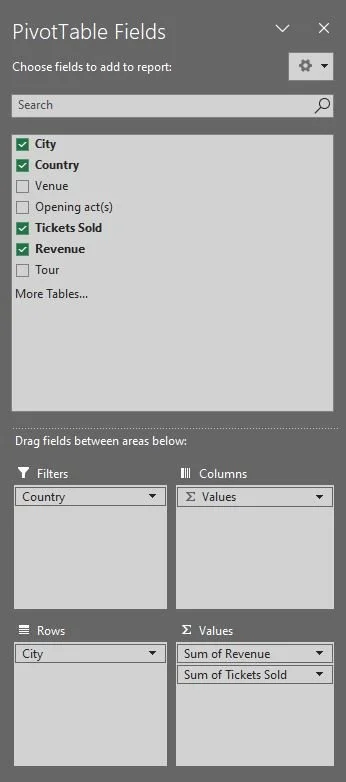
The following examples demonstrate how to work with a blank pivot table.
Pivot Table Field List
The Field List displays all variables in your dataset and indicates which ones are presently part of the Pivot.
Filters:
To use specific fields for filtering the entire dataset, simply drag them to the Filters box.
Columns:
Variables added to the Columns field manifest as individual columns within the Pivot.
Rows:
Variables added to the Rows field appear as individual rows within the Pivot.
Values:
Numeric variables, representing quantitative measures like sales, revenue, and clicks, are typically included in the Values field.
Clear, Select & Move Pivots
Clear: Eliminate all fields and values from a table or specifically clear applied filters.
Select: Choose complete sections of the PivotTable or the entire table itself.
Select the Entire PivotTable, then copy and paste to duplicate the entire Pivot.
Move Pivot Table: Transfer an existing PivotTable to a new worksheet or a different location within the current worksheet.
Static vs. Dynamic Source Data
Static source data refers to fixed or unchanging data that remains constant over time. Once entered or recorded, static data does not automatically update; the user would need to make manual changes if updates are needed. On the other hand, dynamic source data is subject to change and can automatically update itself. Changes in the underlying data are reflected in real-time, providing a more fluid and up-to-date representation of information.
Refreshing & Updating Source Data
Refresh: Updates the PivotTable according to modifications made within the specified source data range or table.
Change Data Source: Enables you to refresh the Pivot and incorporate changes beyond the defined source range or table, such as new columns or rows.
Format your source data as a table for dynamic adjustments with the addition of new columns or rows. Alternatively, employ a column-only range reference (e.g., $A:$G).
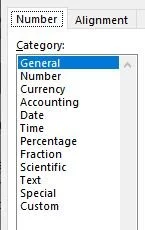
Number Format
This refers to the way numeric data is displayed in the cells. Using number formatting, you can enhance the clarity and readability of your data, making it easier to interpret the information presented in the table.
Blank & Error Values
As the name indicates, blank cells don't have any entered data and are often used for missing information. Meanwhile, error values are the result of formula issues. Choosing to keep cells blank provides a cleaner look, doesn't impact calculations, and is suitable for data analysis. That said, displaying error values highlights issues and helps users address errors before relying on calculations. The decision to use blank or error values depends on aesthetics, calculation impact, data analysis goals, and user experience.
Pivot Table Cache
When creating a pivot table, Excel generates a compressed duplicate (cache) in memory for faster processing. When dealing with static source data, you can delete the raw data and still work with the pivot using the cache. Enabling "show details" allows easy recreation of the source data if needed. If you delete the table with raw data, it can be retrieved. So, don’t worry!
Table Layouts
Compact Form (default): Fields/dimensions are condensed into one column and feature a single filter option.
Outline Form (recommended): Each field/dimension is separated into its own column to create distinct column headers and filter options. This configuration allows you to apply custom filters to each field, such as label filters on the Product Category field and value filters on the Product Sub-Category field.
Tabular Form (non-repeating): Data is presented without repetition. This is suitable in scenarios where each row corresponds to a unique combination of values, thus eliminating redundancy. This format can also be used when a concise, non-redundant representation of data is preferred, commonly in database reports or structured datasets.
Tabular Form (repeating): This format is used when presenting detailed information. Use this format to create a new raw dataset while displaying data with repeating labels.
Sorting & Filtering
Sort A to Z: Arrange data in ascending order (smallest to largest).
Sort Z to A: Organize data in descending order (largest to smallest).
More Sort Options: Explore additional sorting choices for customized arrangements.
Label Filters: Apply filters based on labels or text in the data.
Value Filters: Implement filters based on numerical values in the dataset.
Conditional Formatting
Conditional formatting in Pivot Tables enables users to apply rules similar to those used in regular data ranges. Users can implement text and value-based formats, utilize data bars, apply color scales, use icon sets, and create formula-based rules. This flexibility allows users to visually enhance and highlight specific data patterns or conditions within their PivotTables, providing a more insightful and customized visual representation of the information.
Insert Slicer: A visual and user-friendly way to filter data by creating buttons for specific categories that make it easier to explore and analyze data subsets.
Insert Timeline: These provide an intuitive control for filtering data across specific time periods, aiding in the identification of temporal trends and patterns within the dataset.
Show Report Filter Pages
Utilize this feature if you wish to automatically generate new tabs for each unique value within a specified filter, such as Venue or Year. This functionality allows for a more focused analysis of data subsets and simplifies the process of exploring and comparing information specific to each category. As a result, you can enhance the efficiency of data examination and interpretation within the PivotTable.
(PivotTable Tools → Analyze → Options → Show Report Filter Pages)
Summarize Values By…
This feature determines how numerical values should be aggregated or consolidated. It allows users to choose the method of summarizing the data, such as summing, counting, averaging, finding the maximum value, and more. Summarize Values By ... is essential for defining the way numeric data is treated and presented within the PivotTable. For example, selecting "sum" will add up the values, "count" will count the number of entries, "average" will calculate the mean, "max" will identify the highest value, and "min" will identify the lowest value.
Show Value As…
This is a powerful tool for enhancing the presentation, understanding, and customization of data within PivotTables in different ways and providing valuable insights into the relationships and proportions within the dataset. It allows users to present data in alternative formats, such as percentage of grand total, running total, percentage of column total, and more.
Calculated Field
The field allows users to create new fields based on custom calculations derived from existing fields. Users can define formulas using mathematical operations, functions, and references to other fields. This feature is valuable for generating additional insights and metrics that are not directly available in the original dataset. Calculated Fields enhance the flexibility and analytical power of PivotTables, enabling users to perform complex calculations without modifying the source data.
-
Basic Arithmetic Operations:
Addition: Field1 + Field2
Subtraction: Field1 - Field2
Multiplication: Field1 * Field2
Division: Field1 / Field2
Return on Investment (ROI): ROI = (Revenue - Cost) / Cost
Click-Through Rate (CTR): CTR = (Number of Clicks / Number of Impressions) * 100
Conversion Rate: Conversion Rate = (Number of Conversions / Number of Clicks) * 100
Cost per Click (CPC): CPC = Cost / Number of Clicks
Cost per Acquisition (CPA): CPA = Cost / Number of Conversions
Date Calculations: Date Difference: Field1 - Field2
Pivot Charts
A PivotChart is essentially a chart linked to a specific PivotTable. As you modify filters and fields in your Pivot, the PivotChart dynamically updates. Working in tandem with PivotTables, these charts offer a dynamic and interactive approach to visualizing and analyzing data. You can format Pivot Charts just like regular Excel charts; the key distinction lies in their dynamic connection to a Pivot Table.
Types of charts available:
- Column Chart - Bar Chart - Line Chart - Pie Chart - Area Chart - Scatter Plot - Doughnut Chart - Bubble Chart - Combo Chart - Radar Chart - Map Chart - Treemap - Sunburst Chart - Funnel Chart
Choose the Pivot and opt for PivotChart either from the "Insert" tab or the "Analyze" tab.
Pick a specific chart type.
The resulting PivotChart is seamlessly inserted and dynamically linked to the pivot. It's worth noting that with this dynamic link, you have the capability to create a dashboard incorporating the PivotChart and related data for a comprehensive and interactive data visualization experience.
Pivot Table Filters: Utilize filters directly within the linked PivotTable to selectively display data in your PivotChart. This ensures that only relevant information is visualized based on criteria you set.
Chart Filters: Pivot Charts come equipped with their own set of filters, allowing you to refine the displayed data directly within the chart. This flexibility enables a more dynamic and interactive exploration of your information.
Slicer Integration: Enhance your filtering capabilities by incorporating a user-friendly visual tool called slicers. Slicers provide a dedicated area to easily filter both the PivotTable and the linked PivotChart simultaneously, fostering a seamless analytical experience.
Format Chart: Includes a set of tools and options for users to customize the appearance and layout of a chart. This section is crucial for tailoring the chart to specific preferences, improving its visual clarity, and allowing users to make detailed adjustments to various chart elements. Key customization options include modifying the chart title's font, size, color, and alignment, as well as controlling the appearance of axis labels, data labels, and legends. Users can enhance readability by adjusting gridlines and tailor the overall chart area, including background color and border settings. Additionally, the "Format Chart" section offers options to customize individual data series, axes, plot areas, and various chart elements. Users can explore predefined chart styles or save custom templates for consistent formatting across multiple charts.